
Velocity
BETTER STARTS INSIDE.
Vision Quest is converting to a new virtual cycling platform and we are excited to receive your feedback in Phase 1 of our implementation.
VQ members are the first to experience the product and your feedback will be instrumental in helping us to shape the product. To assist us in testing out our billing system, we will be asking everyone to pay $1/month for the VQVIP subscription that comes with your VQ membership.
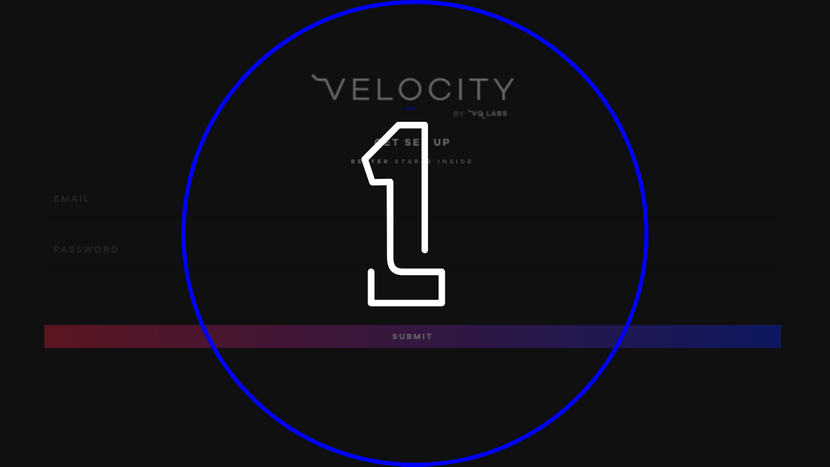
Set Up Your Velocity Account
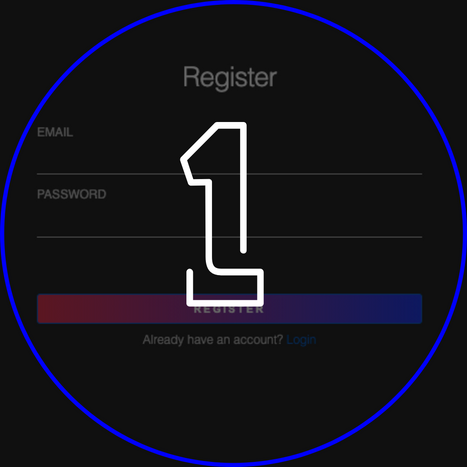
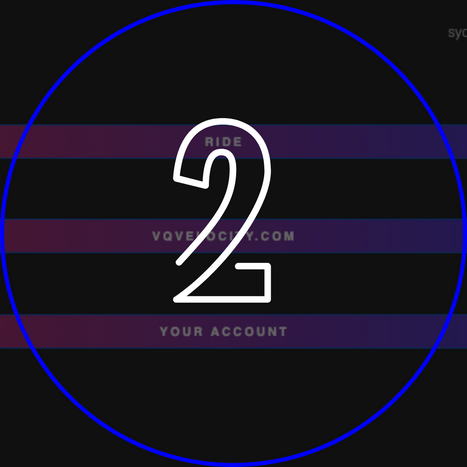
Click "Your Account"
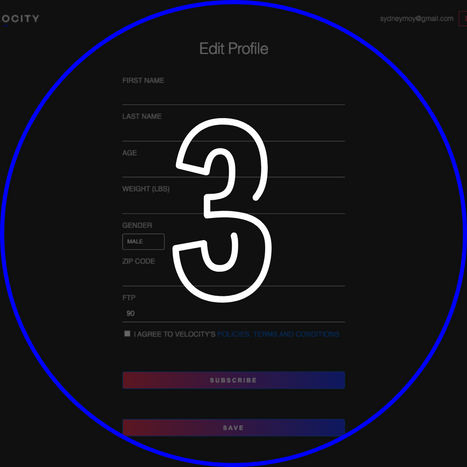
Add Your FTP and press "Save"
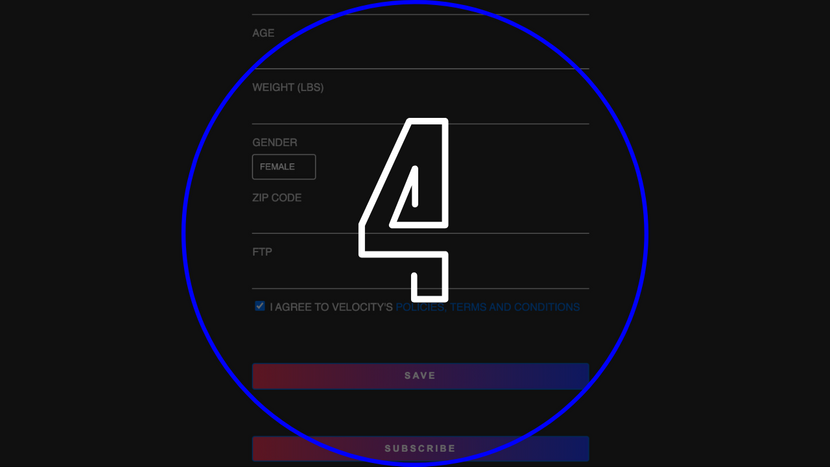
Press "Subscribe"
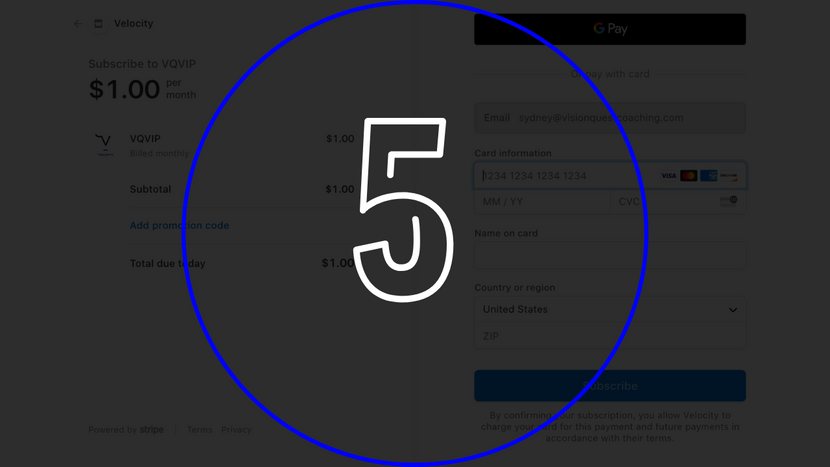
Subscribe as a VQVIP for $1/month
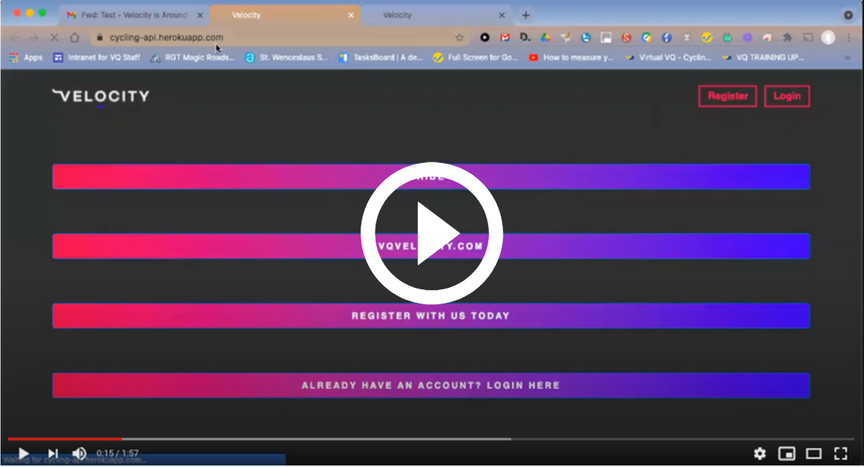
Set Up the Chrome Desktop App
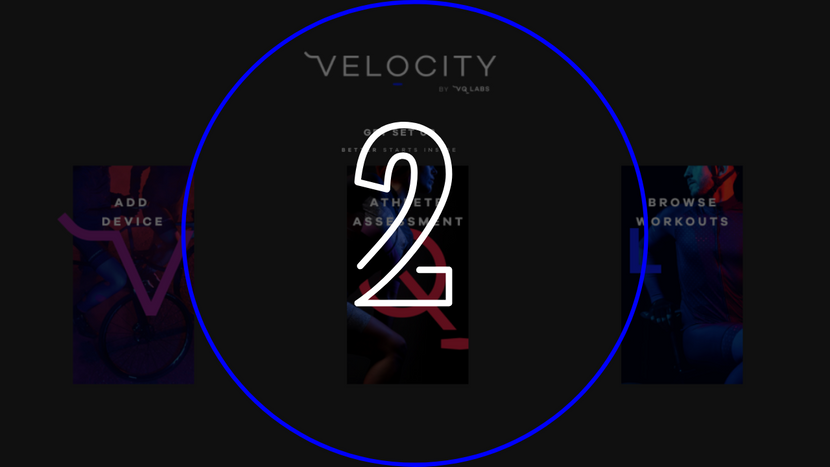
Click "Add Device"
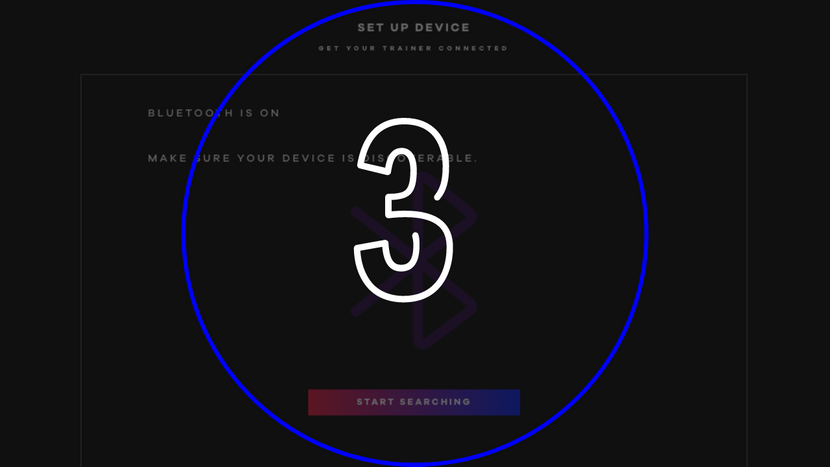
Connect Your Device
Smart Trainer is recommended, bluetooth enabled power meter works too.
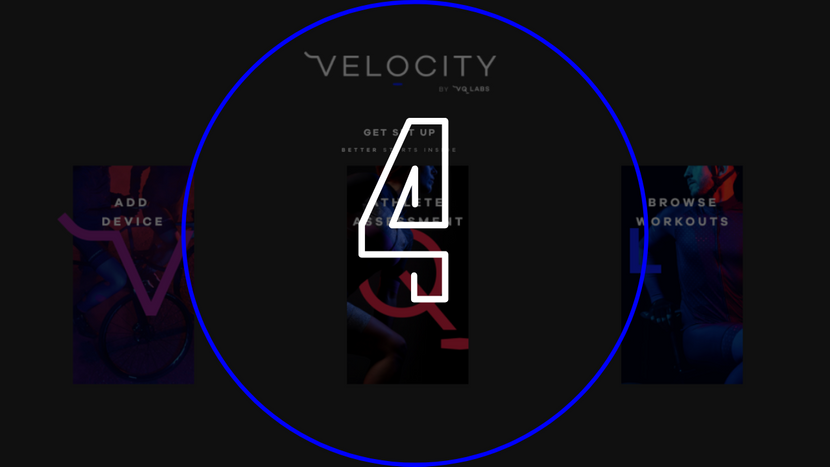
Click on "Browse Workouts" to Attend a Class
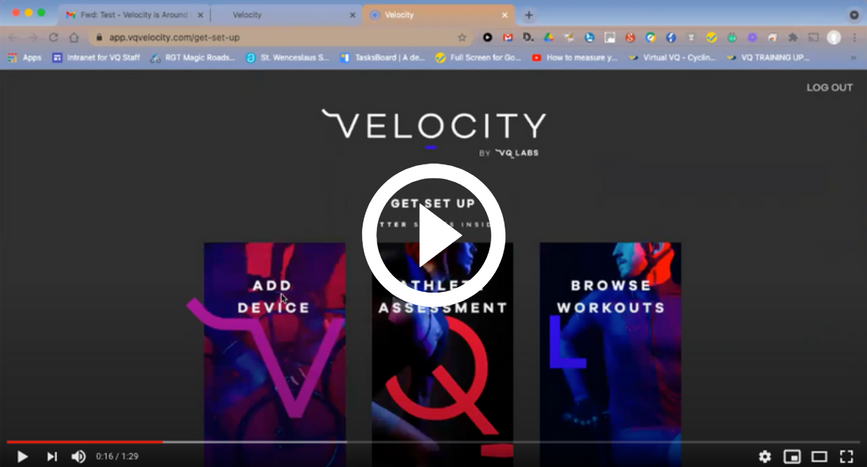
What You Need to Ride

Device for Desktop App
You can run our Chrome desktop app on either a Mac or PC.

Trainer
Smart trainers (preferred) or a simple trainer with a bluetooth enabled power meter can be used for our workouts.

Internet Connection
WIFI is great, hardwired is always better
Troubleshooting Guide
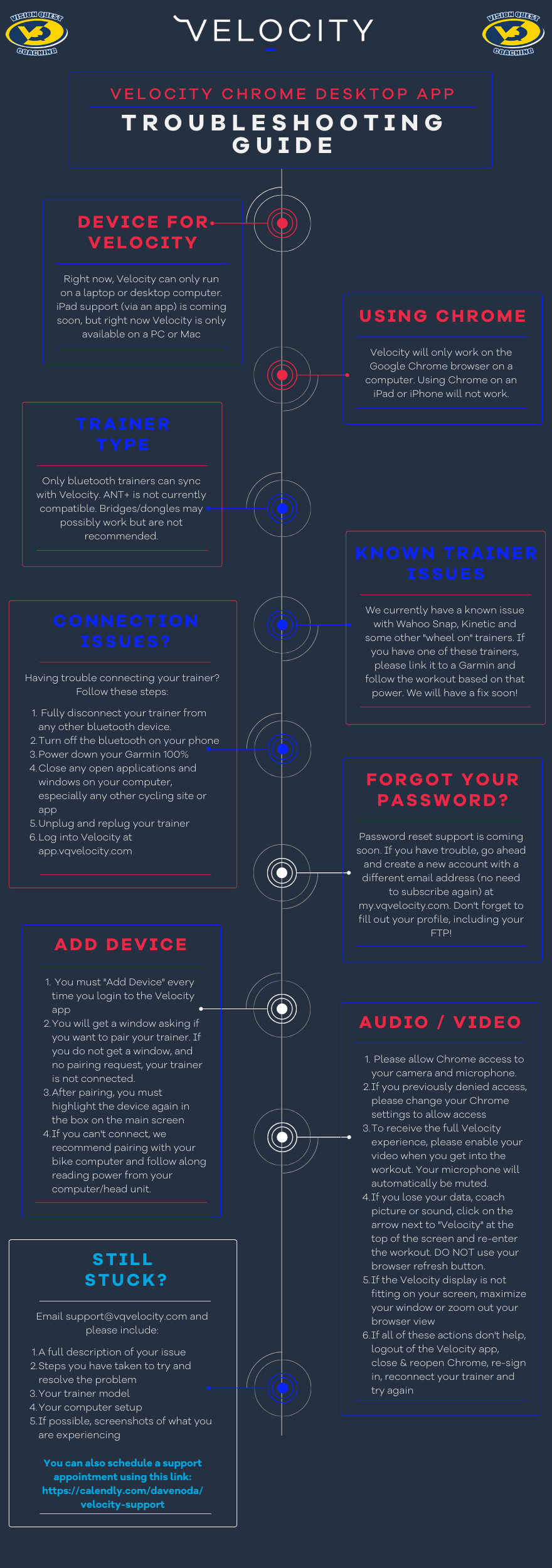
Frequently Asked Questions
Supported trainers
- When talking about smart trainers there are really 3 types of smart trainers. There are many advantages of having a smart trainer, but before we get into models, the basics of having a smart trainer is the ability to have "power, speed, RPM, and distance on your display", but one of the biggest advantages is that you can connect and change the gradient on your bike as you would feel outdoors. Now the 3 main models:
Direct Drive
Wheel On
All in one stationary bike
The Smart Trainers we have tested so far with great success are the Tacx, Kickr, Snap, Saris (Hammer and Tarus)
How do I connect my smart trainer or power meter?
- Make sure your device's bluetooth is turned on.
- Log into the app and click on "Add Device" (this is the only place your smart trainer or power meter is called a device).
- Once you're sure all of your bluetooth devices are on, click on "Start Searching".
- Tap on your device and then tap on "Connect".
- A confirmation screen will appear where you can click on "Let's Go".
Pro Tip: Your smart trainer cannot talk to two devices at the same time. If your trainer is talking to your bike computer, for example, it cannot also talk to your device
How do I find the workout?
- On the main screen, select "Browse Workouts".
- The workout screen will populate and you can choose the date and time of the workout you're looking to join.
- You'll be dropped into that workout and it will start at the scheduled time.
- Live rides won't be active until 10 minutes prior to the start time.
Will I get my data from the ride?
A workout file will be sent to the email account registered to your Velocity account.
Can I sync my data with a third-party app like Strava or Training Peaks?
Not currently. In future versions of Velocity, you will be able to link your Velocity account to third-party apps to automate the file transfer
If I lose internet connection or the app crashes, can I get back into the workout?
If you lose internet connection, the workout will pick up at the real time moment in a live workout after you relaunch the app and go back into the workout.